在 App Store 下载

快捷指令自动化设置指南

为了自动转发短信,应用使用了 iOS 原生功能——快捷指令自动化。按照以下简单的一次性设置即可启用。

1

前往自动化

Open the Shortcuts app and tap the Automation tab at the bottom. You can also reach this screen from the SMS to Email Forwarder app by going to 工具与帮助Setup Instructions, and tapping the Open Automation App button.
Shortcuts app Automation tab
2

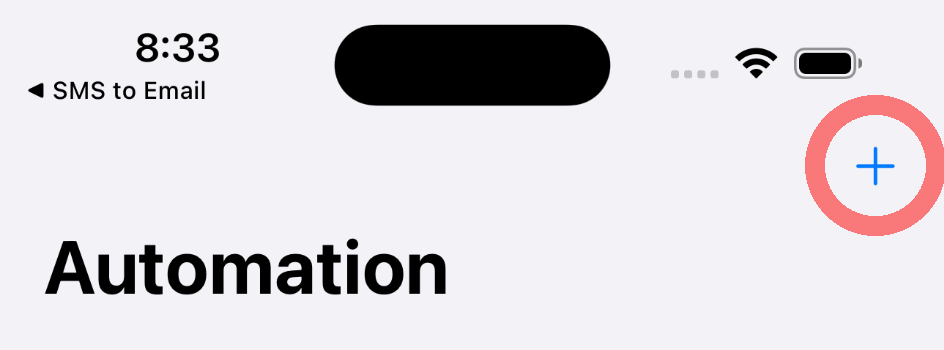
创建新自动化

点击右上角的加号 (+)按钮创建新的自动化(或者如果还没有,点击新建自动化)。
New Automation button
3

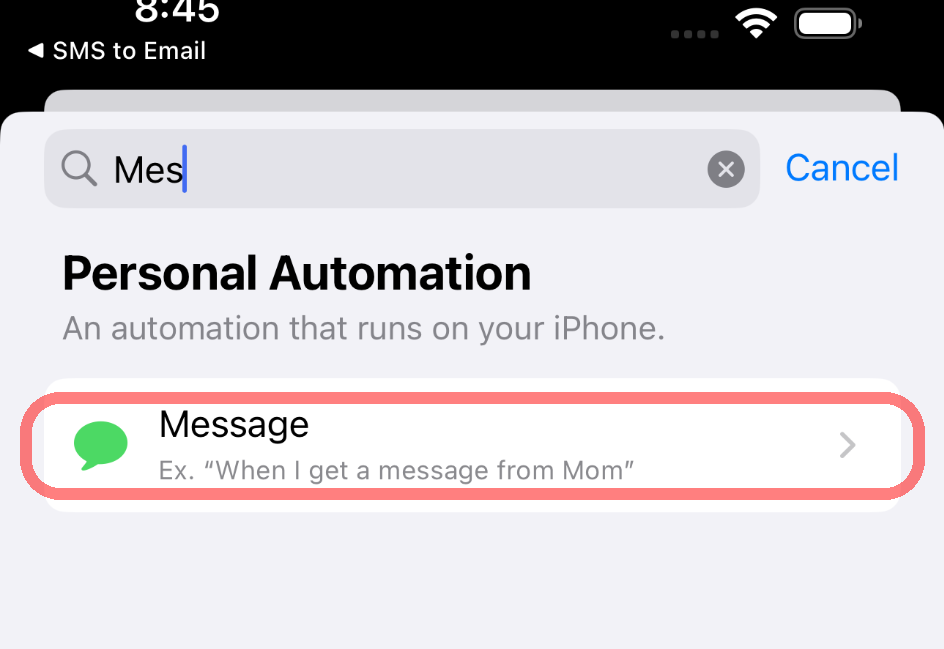
选择信息触发器

在搜索栏中输入"信息"(或向下滚动)并选择信息触发器。
Select Message trigger in Shortcuts
4

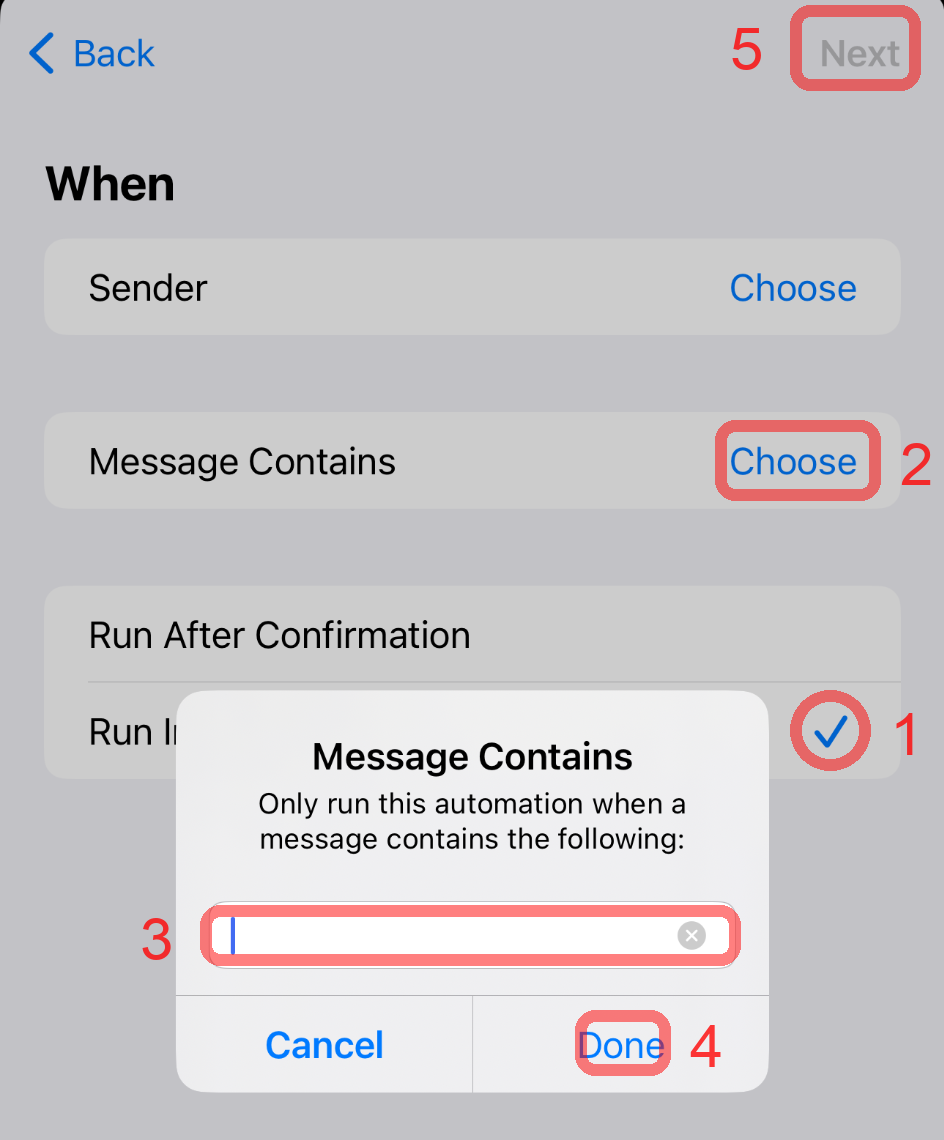
配置触发条件

  1. 确保"立即运行"已开启。
  2. 点击信息包含旁边的"选择"。
  3. 在弹出窗口中,在文本框内输入一个空格
  4. 点击"完成",然后点击右上角的"下一步"
Configure when message is received
5

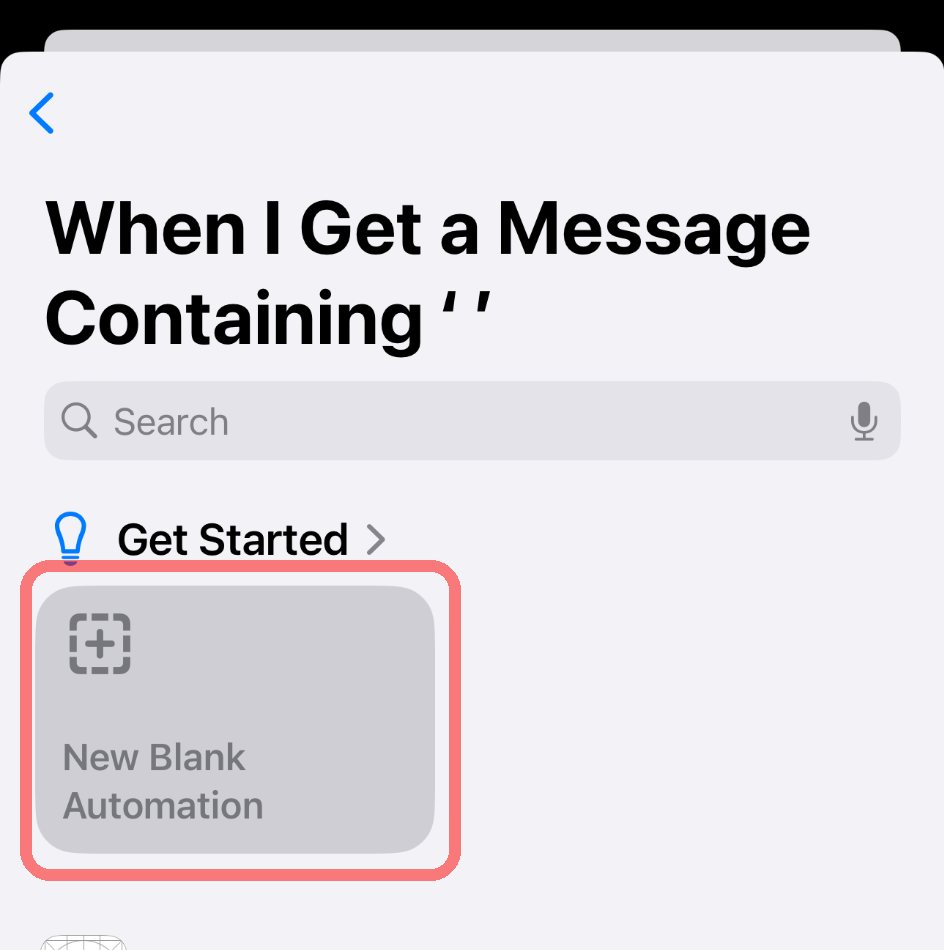
新建空白自动化

在下一个页面中,选择新建空白自动化
Select 新建空白自动化
6

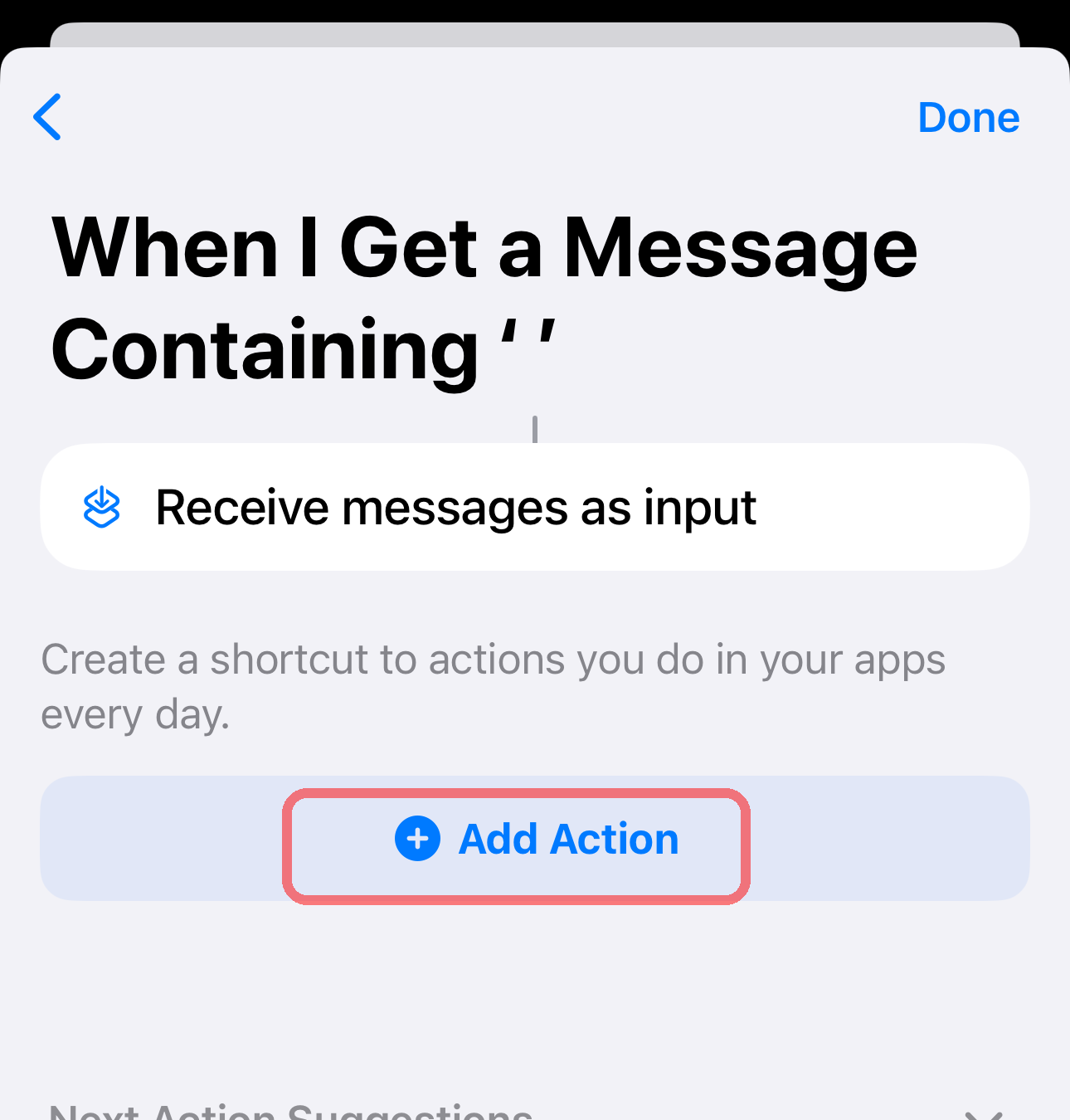
添加操作

点击蓝色的+ 添加操作按钮。
添加操作 button
7

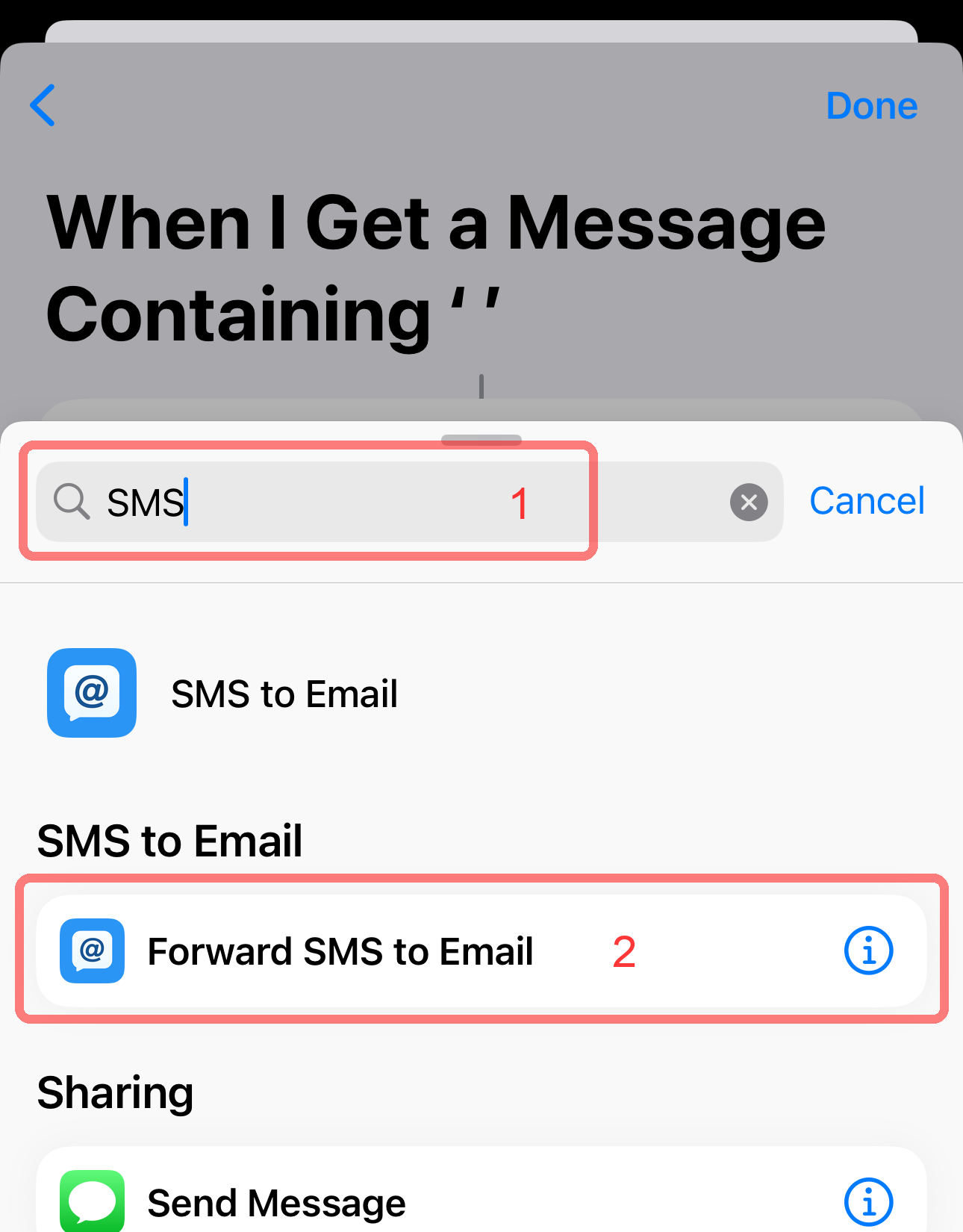
找到 "Forward SMS" 操作

在搜索栏输入 "sms"。在 "SMS to Email" 部分下,选择 Forward SMS to Email
Search for and select the Forward SMS to Email action
8

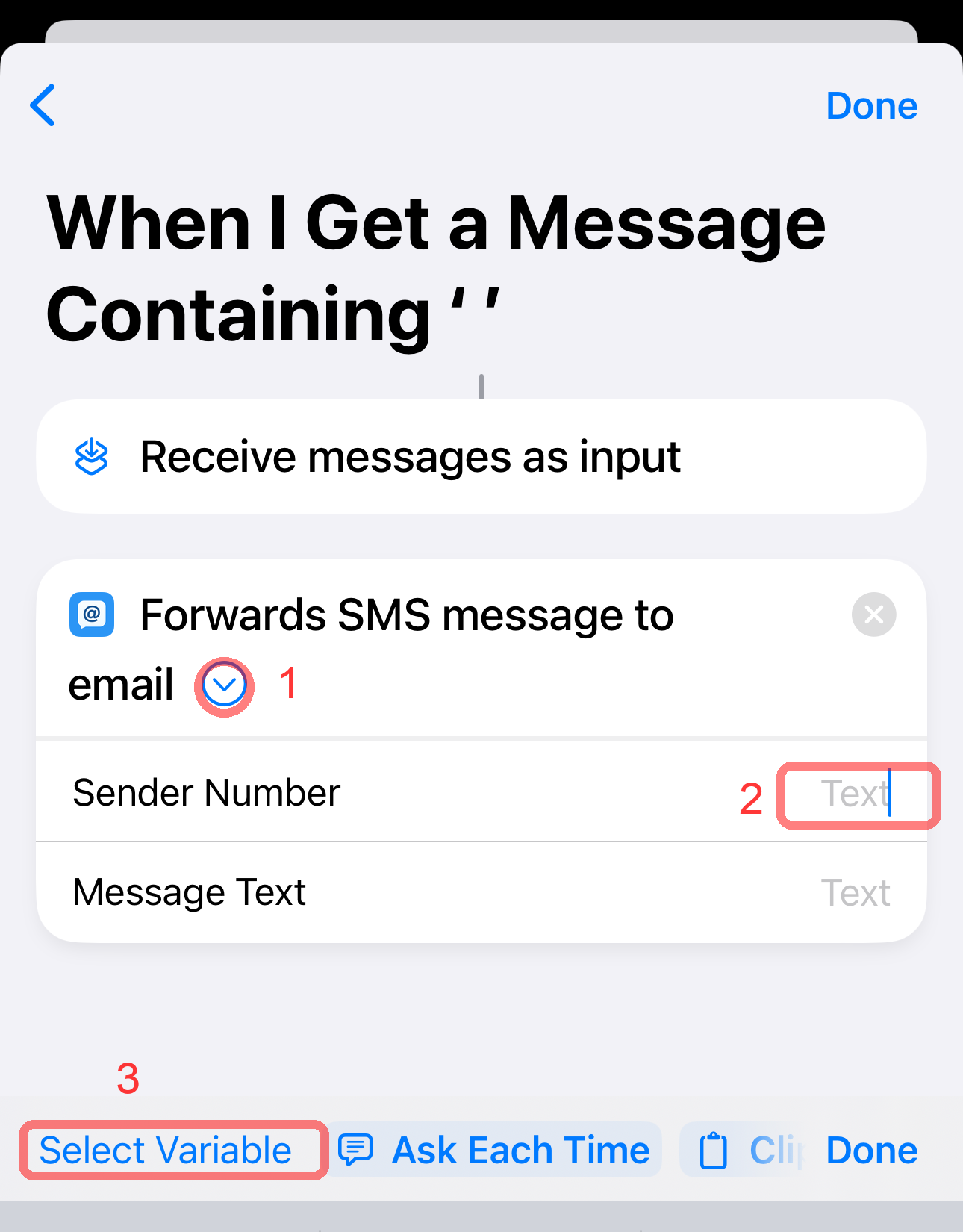
展开参数

  1. 点击小箭头图标 (›) 展开操作。
  2. 点击发送者号码旁边灰色的"文本"标签。
  3. 从底部菜单中选择选取变量
Expand action parameters and select variable
9

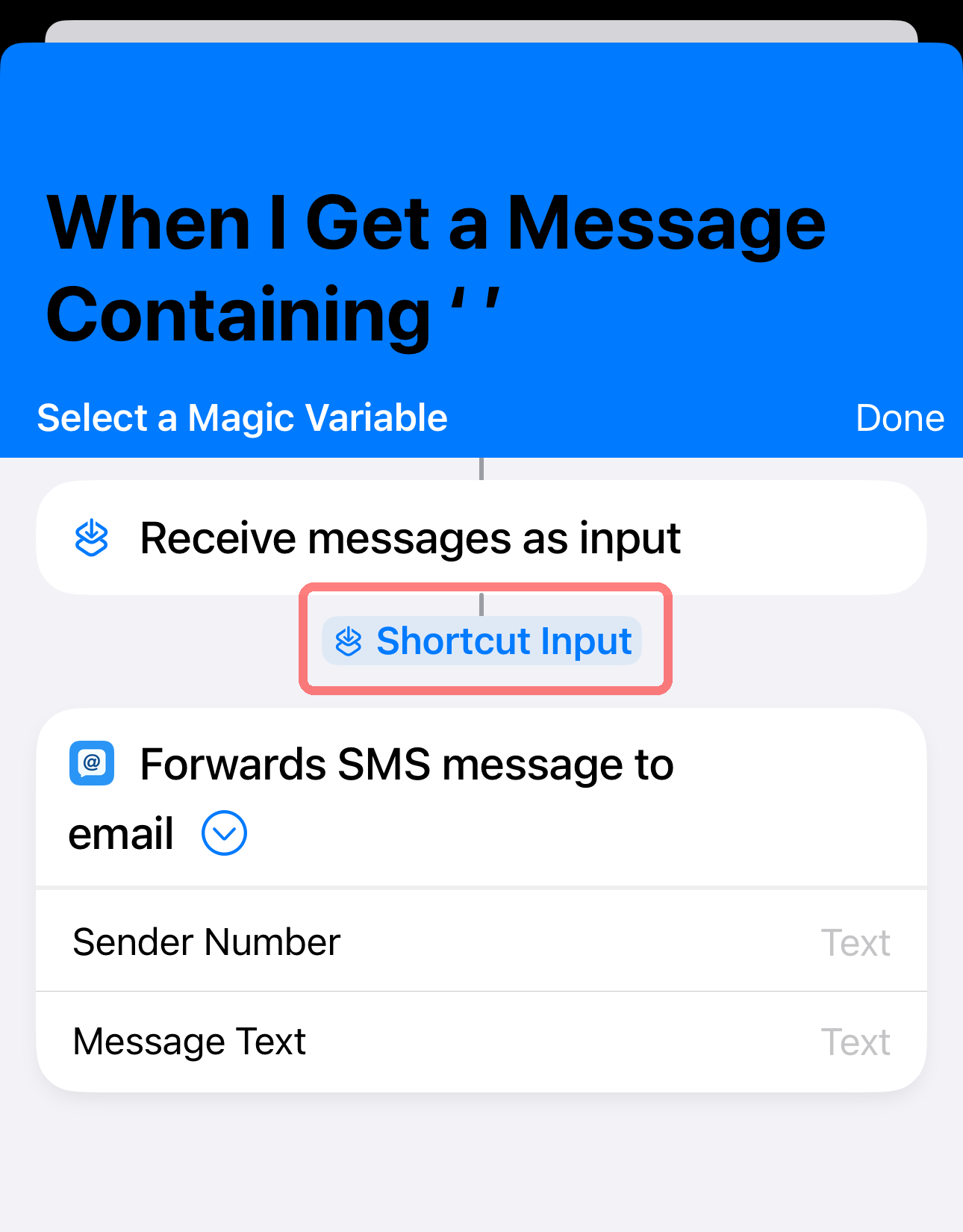
选择快捷指令输入

从操作上方出现的变量选择器中,选择快捷指令输入
选择快捷指令输入 as the variable
10

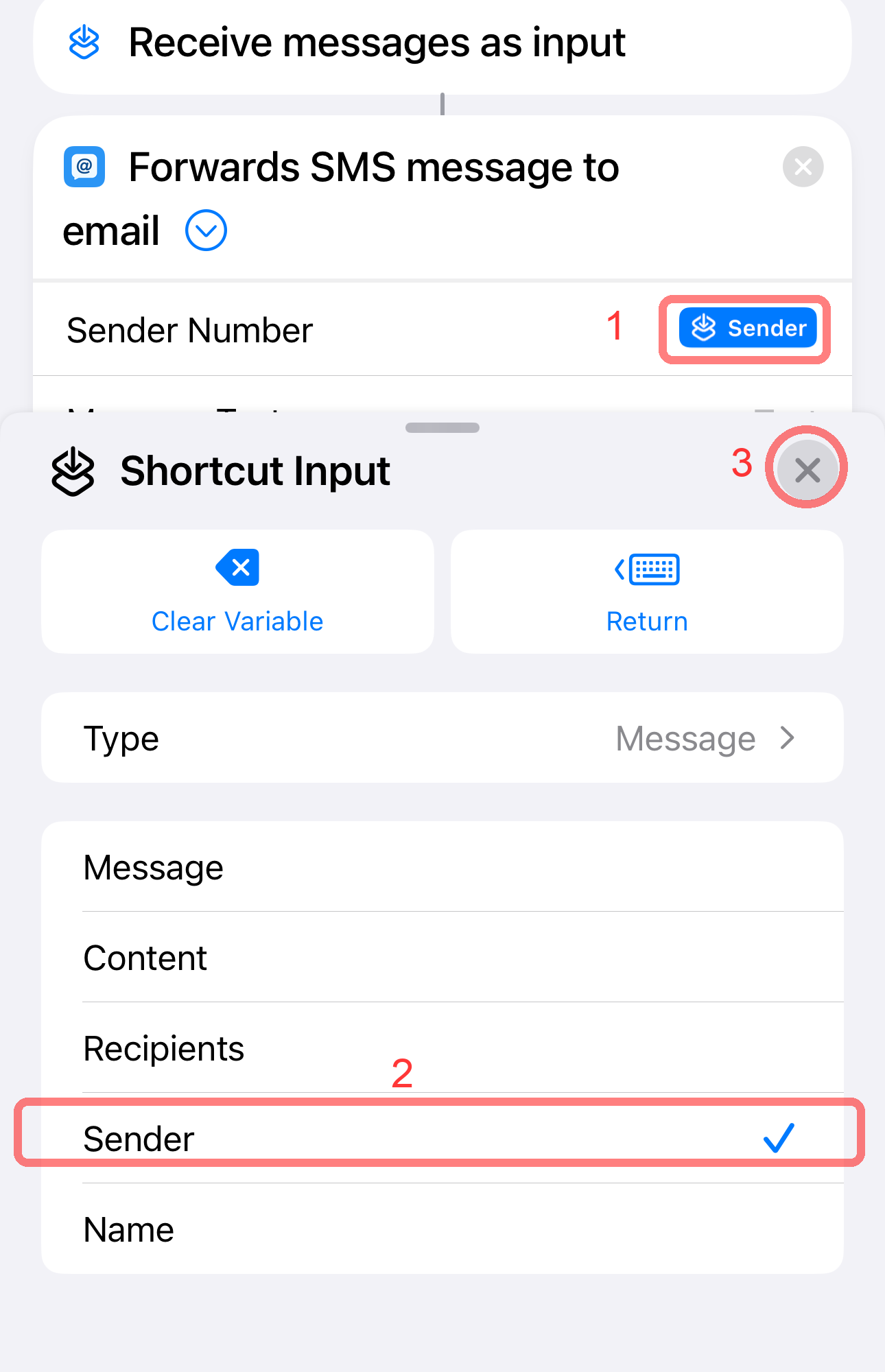
设置发送者属性

  1. 一个蓝色的"快捷指令输入"标签将会出现。点击它。
  2. 在出现的面板中,从属性列表中选择发送者
  3. 点击 X 图标关闭面板。
Set the Shortcut Input property to Sender
11

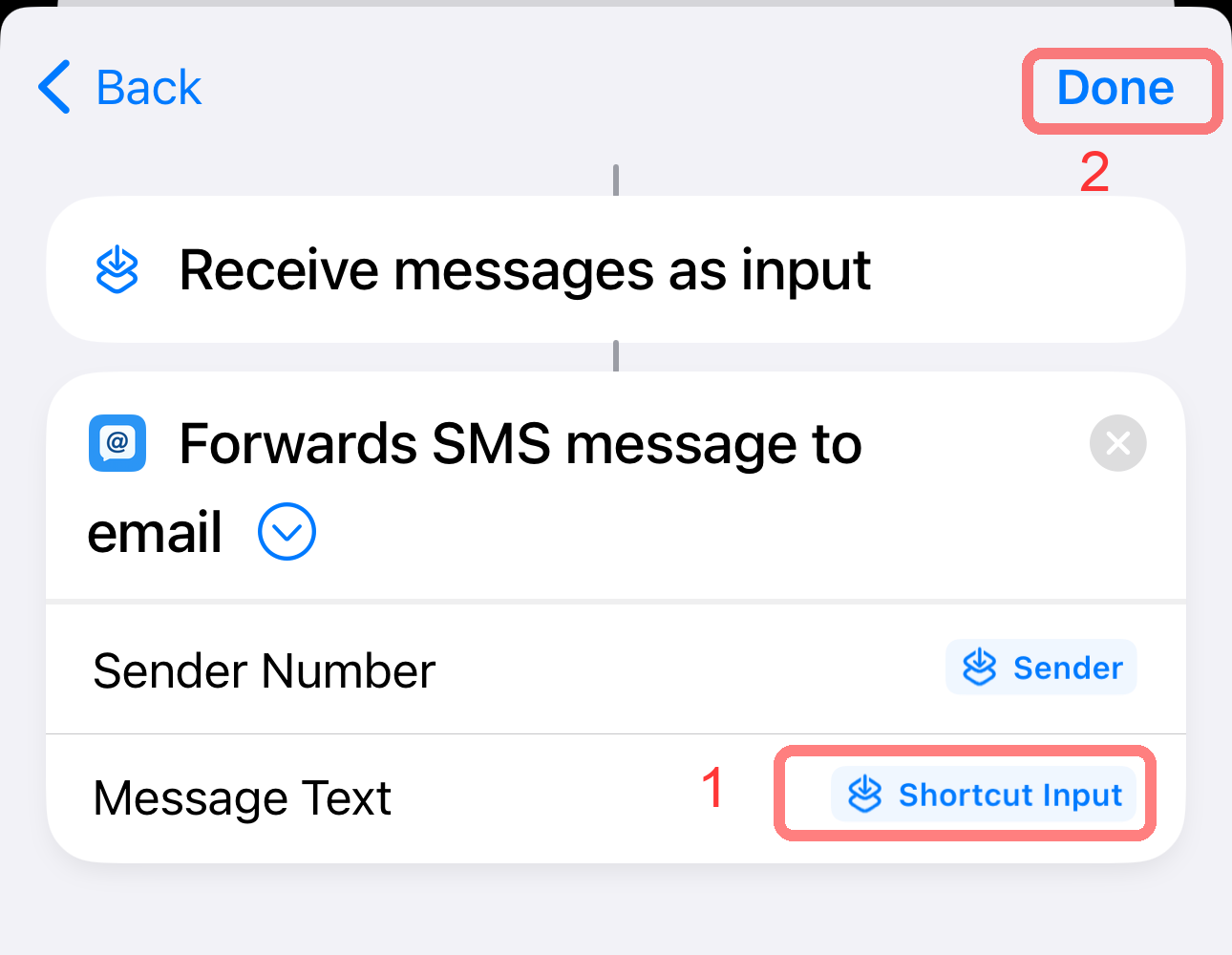
设置消息文本属性

Repeat the process for the message body:
  1. 点击消息文本旁边灰色的"文本"标签。
  2. 选择选取变量,然后点击快捷指令输入
  3. 此项无需再设置其他属性。点击屏幕右上角的完成
Set Message Text to Shortcut Input
12

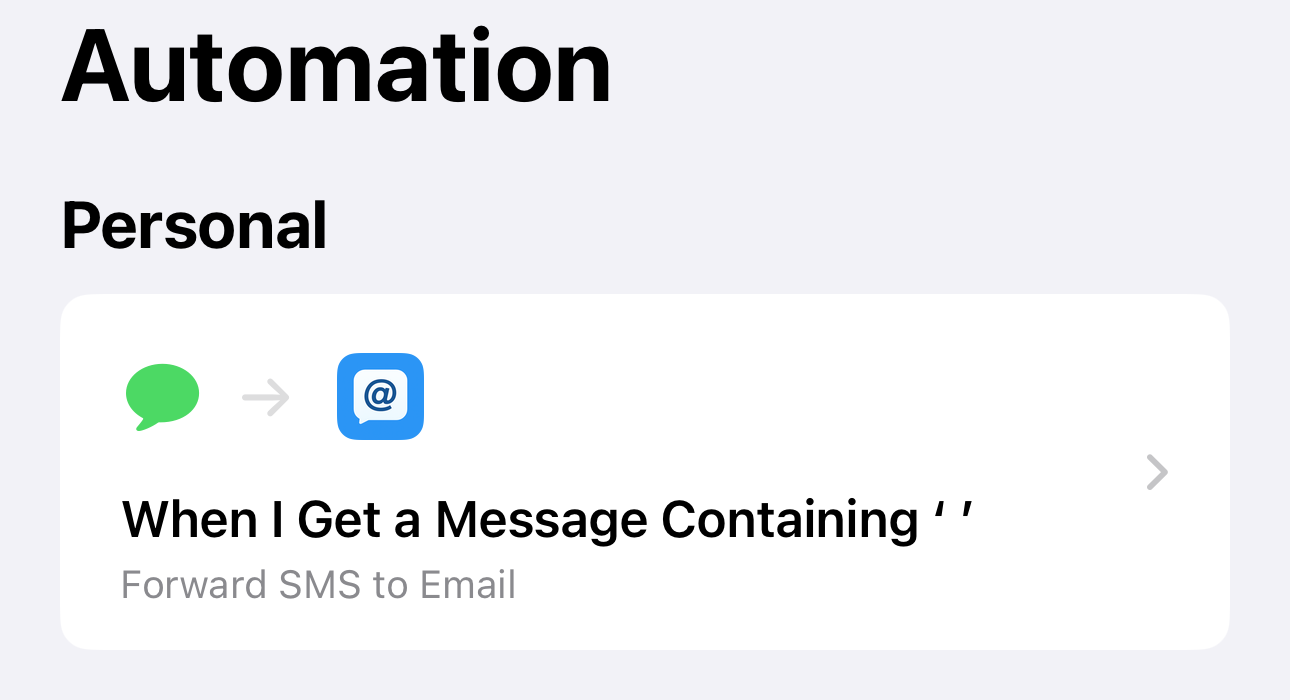
全部完成!

完成!您的自动化现已生效。如果设置正确,应当与图片一致。您现在可以关闭快捷指令应用。
Final configured automation